
Laptop won’t turn on? 7 fixes to try first
You press the power button and… nothing. No lights, no fan — or maybe the lights come on but the screen stays black. Before you assume the worst (or pay for a repair you might not need), there are a handful of safe, simple checks that fix a surprising number of “dead” laptops.
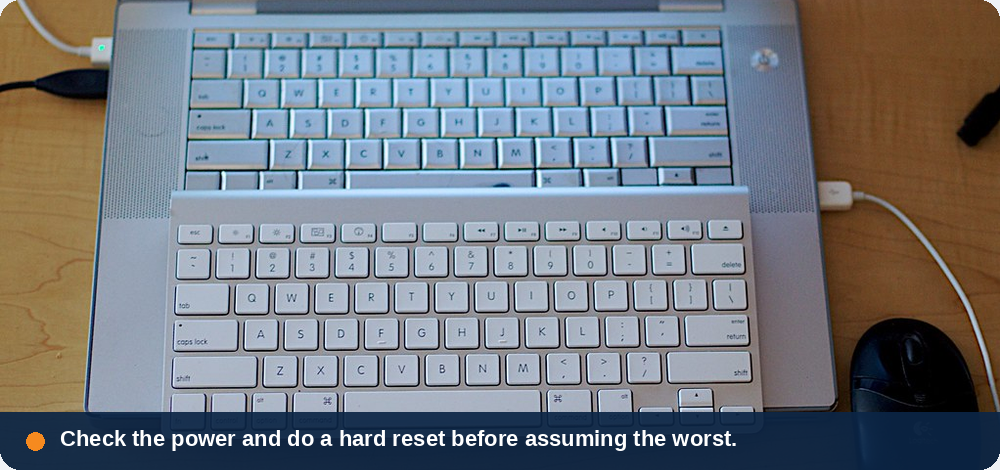
Work through these seven in order. None of them risk your data, and most take only a few minutes. If you reach the end and it’s still not starting, that usually points to a hardware fault — and that’s where a local technician comes in.
Check the power before anything else
A flat battery and a power problem are the most common reasons a laptop won’t start — so rule them out first.
- Charger firmly plugged in at both ends — the wall and the laptop.
- Test the wall outlet with something else. If you’re on a multi-board or surge protector, plug straight into the wall to rule it out.
- Check the charger’s light is on, and the cable isn’t frayed or the plug damaged.
- Leave it charging 15–30 minutes — a completely flat battery sometimes needs a little charge before it responds at all.
If the charger light flickers, the cable is warm, or the connector is loose, the adapter itself may be the fault — a cheap part to replace compared with the laptop.
Do a hard reset (power drain)
This is the single most effective trick, and it clears a huge share of “won’t turn on” faults by discharging leftover power that can leave a laptop stuck.
- Unplug the charger and remove the battery if your laptop has a removable one.
- Press and hold the power button for 15–30 seconds to drain residual charge.
- Plug the charger back in (leave the battery out for now) and press power.
If it starts up, you’ve just saved yourself a callout. Pop the battery back in once it’s running.
Rule the battery in or out
If your laptop powers on with the charger connected but the battery removed, the battery is the likely culprit and will need replacing. On a sealed laptop you can’t remove the battery yourself — but the hard reset above still works, and a technician can test or swap it safely. A battery that’s a few years old and suddenly won’t hold charge is normal wear, not a disaster.
Disconnect everything plugged in
A faulty accessory can occasionally stop a laptop booting. Unplug everything — USB drives, external monitors, printers, docks, SD cards, even the mouse — and try again with nothing but the charger attached. If it starts, reconnect things one at a time to find the troublemaker.
Look closer at the screen
Sometimes the laptop is on — you just can’t see anything. A few quick checks tell them apart:
- Listen and feel for fans, beeps or a warm vent. Life but no picture usually means a display issue, not a power one.
- Turn the brightness up — hold Fn and tap the brightness-up key a few times in case it’s wound right down.
- Plug in an external monitor or TV. If a picture appears there but not on the laptop, the screen or its cable is the problem — and your data is perfectly safe.
Watch and listen for warning signs
Your laptop often tells you what’s wrong in the first few seconds:
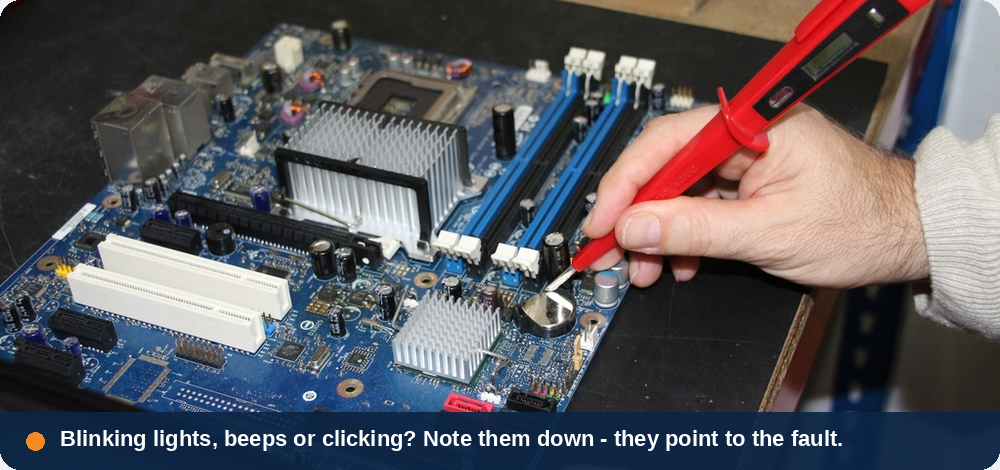
- Blinking lights or a pattern of beeps are diagnostic codes — the number and rhythm point to a specific fault (memory, for example). Worth noting down before you call.
- Clicking or grinding from inside can mean a failing hard drive. If you hear this, stop and don’t keep retrying — acting early gives the best chance of recovering your files.
- A burning smell or hot casing means switch it off at the wall and stop. That’s a job for a technician, not the kitchen table.
Let it cool, then try once more
If the laptop has been somewhere hot, or the fans have been struggling, it may have shut itself down to protect the hardware. Leave it unplugged and switched off for about 30 minutes, somewhere cool, then plug in and try the hard reset from step 2 one more time. Overheating is often a sign the vents are clogged with dust — an easy clean for a technician, and worth doing before it happens again.
When to call in a local technician
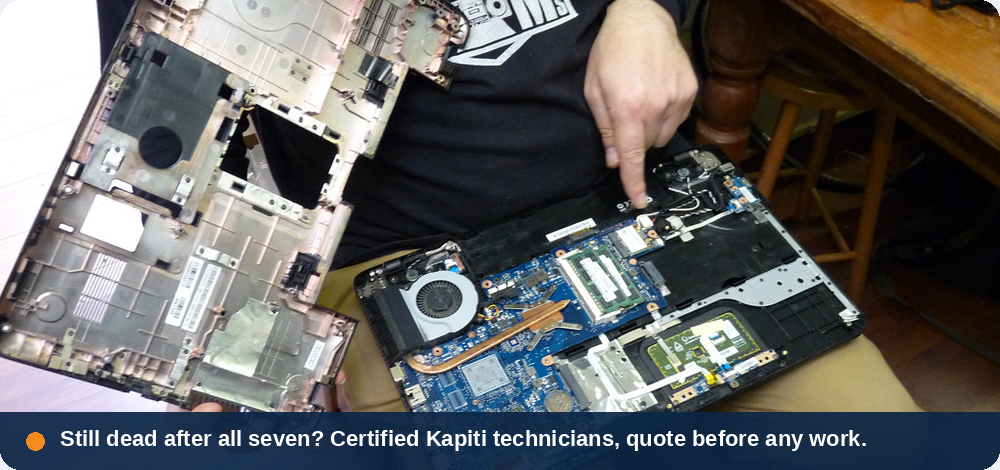
If you’ve worked through all seven and your laptop still won’t start, the issue is most likely hardware — a failed power board, a dead battery, faulty memory, a screen fault or a failing drive. These aren’t kitchen-table fixes, but they’re everyday work for a repair shop, and most are far cheaper than replacing the whole machine.
At Dignity New Zealand we repair laptops, desktops and tablets for homes and businesses right across the Kāpiti Coast and the wider Wellington region:
- Tell us what’s happening — book online, call, or drop in.
- Diagnosis & quote — we find the real fault and give you a clear quote to approve before any work begins. No surprise invoices.
- We fix it — in the workshop, on-site, or remotely where we can.
- Tested & returned — we check it’s running properly and hand it back.
Worried about photos, documents or work files on a machine that won’t start? Ask us about data recovery — often we can rescue what’s on the drive even when the laptop itself is beyond repair. See what we cover on our IT Support & Repairs page, or for proactive cover across a whole office, our Managed IT plans build in monitoring, security and backup so problems get caught early.
We’re an authorised partner for ESET, Microsoft, HP, Seagate, Acronis and Malwarebytes, our technicians are certified, and our reviews are 5.0★ on Google and 100% positive on Trade Me — all real, from local customers. See Plans & Pricing.
Common questions
Why won’t my laptop turn on even when it’s plugged in?
Usually it’s either a charging fault (a bad adapter, cable or port) or stuck residual power. Test the charger on another outlet, check its light is on, then do a hard reset — hold the power button 15–30 seconds with the charger out — before trying again. If the charger light is off or the connector is loose, the adapter is the likely cause.
What is a hard reset and is it safe?
A hard reset (or “power drain”) clears leftover electrical charge that can leave a laptop stuck. You unplug the charger, remove the battery if you can, and hold the power button for 15–30 seconds. It’s completely safe and won’t delete any of your files.
My laptop turns on but the screen stays black — what now?
That points to a display problem rather than a power one. Turn the brightness up (Fn + brightness key), then plug in an external monitor. If a picture shows on the external screen, the laptop’s display or cable is the fault and your data is safe — a technician can repair the screen.
Should I keep trying if I hear clicking or grinding?
No. Clicking or grinding usually means a failing hard drive, and repeated attempts can make it worse and risk your files. Switch it off and get it looked at quickly — acting early gives the best chance of recovering your data.
Do you repair laptops in Kāpiti, and how much does it cost?
Yes — we repair laptops, desktops and tablets across Paraparaumu, the Kāpiti Coast and Wellington. We always diagnose the fault and give you a clear quote to approve before any work starts, so you’ll never get a surprise bill.
The bottom line
A laptop that won’t turn on isn’t always a dead laptop. Check the power, do a hard reset, rule out the battery and accessories, and make sure it isn’t just a dark screen — those four alone fix most cases. If it’s still lifeless after all seven steps, don’t keep forcing it (especially if you hear clicking) — book it in and let us take a safe look.
Laptop still won’t start?
Book a repair or a free diagnosis — we’ll tell you honestly whether it’s worth fixing.
Book a repair or free diagnosis or call our Kāpiti team on 04 390 0033